How to Install IPTV on a Smart TV: Step-by-Step Guide
Everything you need to get IPTV working on your Smart TV: the right app, the correct settings, and what to do if it does not work straight away.
What is IPTV and how does it differ from traditional TV?
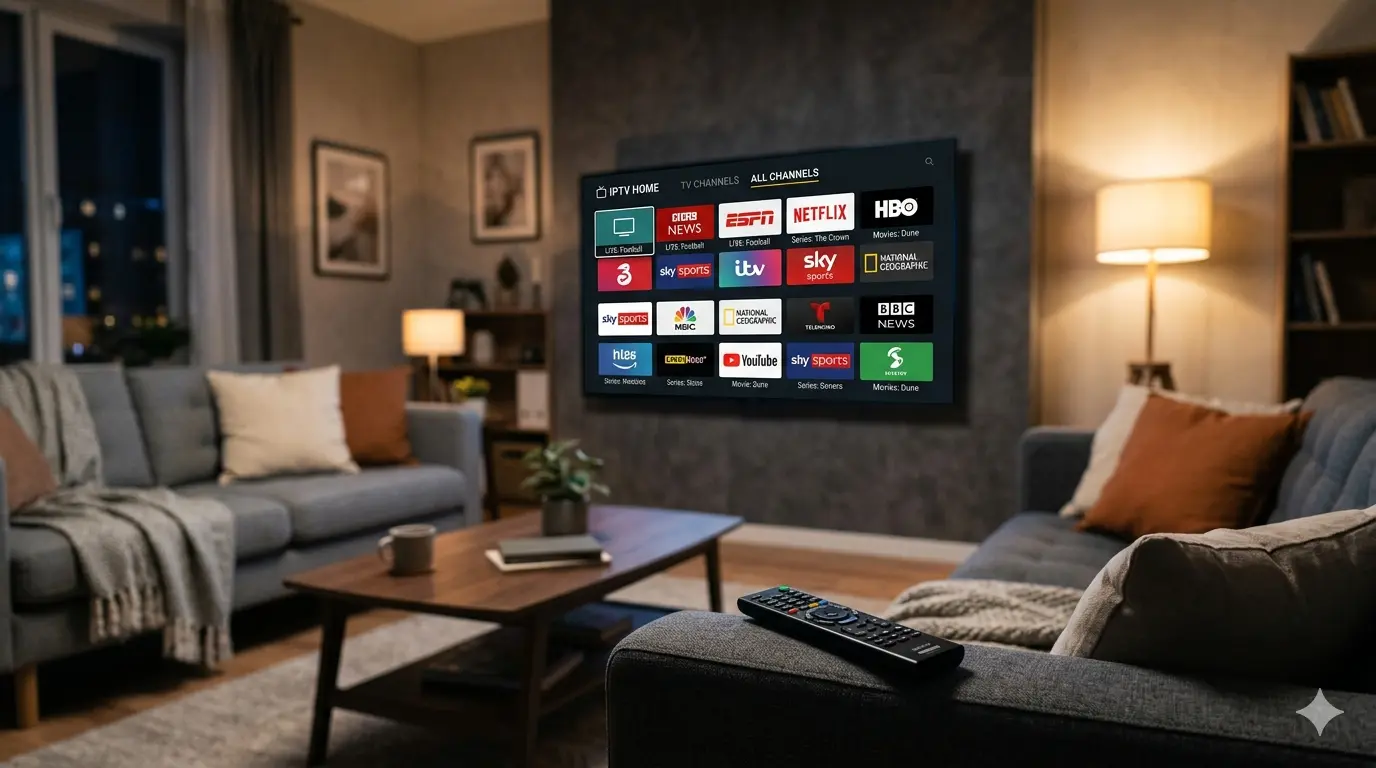
IPTV stands for Internet Protocol Television. Unlike traditional TV delivered through an antenna, cable or satellite, your television receives the picture and sound via your internet connection. This gives you access to thousands of live channels, movies and series without the limits of a standard cable or satellite subscription.
Smart TVs are particularly well suited to IPTV because they connect directly to the internet and can run apps through a built-in app store. This means you do not need an extra box or media player, although an Android TV box can sometimes improve the experience on older televisions.
What do you need before installing?
First make sure your internet is fast enough. A minimum of 20 Mbps is recommended for a stable HD stream. For FHD or 4K viewing, count on at least 30 to 50 Mbps, especially if multiple devices are connected at the same time.
In addition to a good connection, you need your IPTV activation details. These are usually a server address, a username and a password for the Xtream Codes method, or an M3U link if your provider uses that format. Keep these details safe because you will need them every time you log in on a new device.
- Smart TV with internet access and an app store
- At least 20 Mbps internet speed, 50+ Mbps for 4K
- IPTV activation details: server URL, username and password, or M3U link
- Ethernet cable for the most stable connection
- Your email address or WhatsApp number to receive your details
Which IPTV app is right for your television?
The best app depends on the operating system of your TV. On a Samsung Smart TV (Tizen), IPTV Smarters Pro, Smart IPTV and NET IPTV all work well. LG televisions with webOS offer excellent support via SS IPTV and NET IPTV, which you can easily find in the LG Content Store.
If you have an Android TV, Google TV or an Android media player, TiviMate is the most popular choice. It has a clean interface, supports EPG and runs smoothly on both affordable and high-end devices. IPTV Smarters and Perfect Player are solid alternatives if you want more control over the settings.
- Samsung Tizen: IPTV Smarters Pro, Smart IPTV, NET IPTV
- LG webOS: SS IPTV, NET IPTV
- Android TV / Google TV: TiviMate, IPTV Smarters, Perfect Player
- Apple TV: IPTV Smarters Pro or GSE Smart IPTV via the App Store
Step by step: setting up with Xtream Codes
Xtream Codes is the most common method when your IPTV provider has sent you a server address, username and password. Open the app store on your TV, search for the name of your preferred app and install it.
Once the app is installed, open it and select "Xtream Codes" or "Xtream API" as the login method. Then enter the server address, followed by your username and password exactly as they were provided. Pay close attention to upper and lower case letters and extra spaces, as even a small difference will cause the connection to fail.
After a successful login, the app loads your channel list, VOD library and EPG. This can take a few minutes the first time, depending on the number of channels in your package. Once everything is loaded, you can navigate straight to live TV, movies or series.
Installing with an M3U link
If you received an M3U link, go to the option "M3U playlist", "M3U URL" or "External URL" in the app, depending on which one you are using. Paste or type the full link into the input field, including the "http://" or "https://" part at the beginning.
Once you confirm the link, the app loads the channel list. Some apps then offer the option to add an EPG URL for a full TV guide. Ask your provider for this URL if you want to use the programme guide.
Common installation mistakes to avoid
The most frequent mistake is a typo in the server URL, username or password. Many people forget the "http://" or the port number at the end of the URL, or accidentally paste an extra space. Always double-check your details and use copy and paste rather than typing manually.
Another common error is choosing the wrong login method. If you have a username and password, choose Xtream Codes. If you only have a link, use M3U. Mixing the two methods does not work.
- Check for extra spaces before or after the URL, username or password
- Watch for upper and lower case letters — IPTV credentials are case sensitive
- Do not forget the port number in the server URL if one was provided
- Choose the correct method: Xtream Codes for a username and password, M3U for a link
- Restart the app after entering your details if nothing loads
What to do if it still does not work
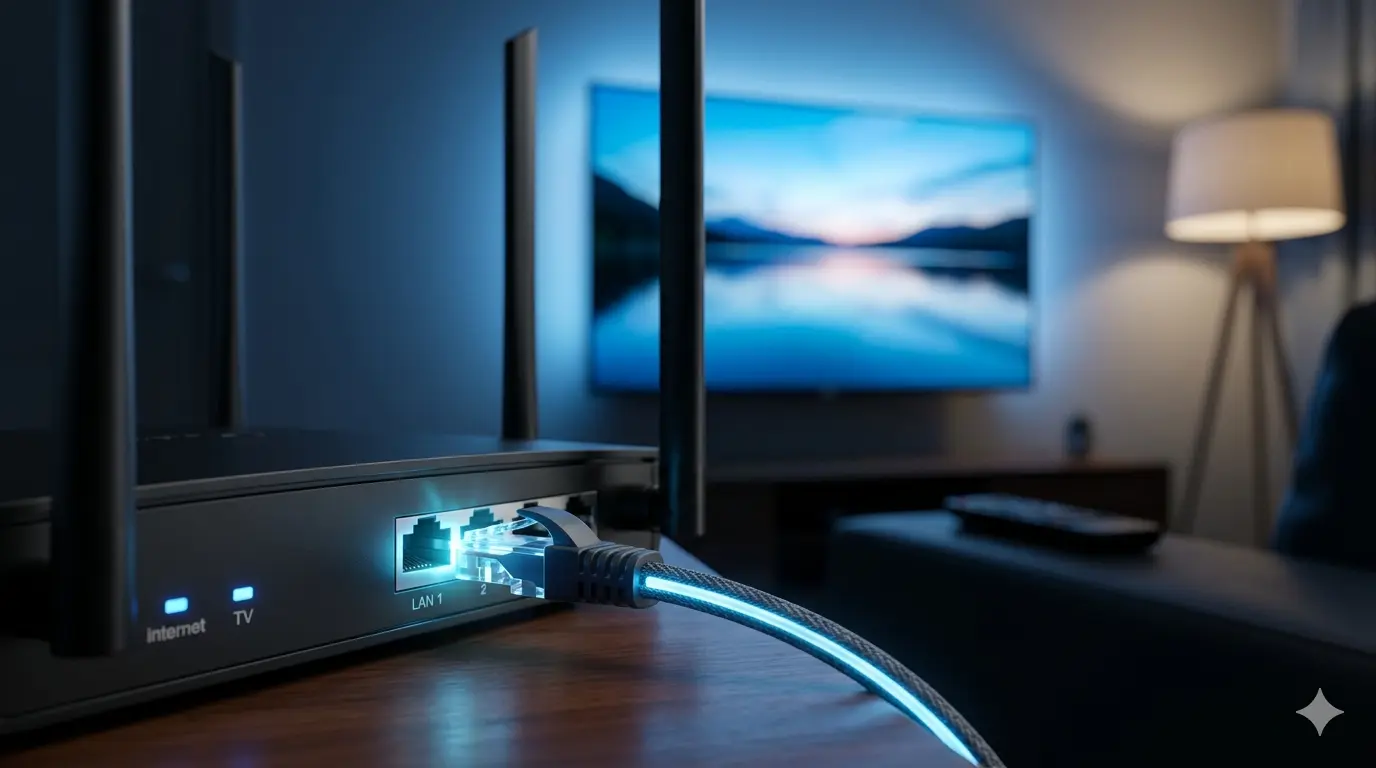
If setup does not work straight away, first check your internet connection. If you are using Wi-Fi, try an ethernet cable for a more direct connection. Some Smart TVs have limited Wi-Fi antennas that can affect stability, especially if the router is in another room.
If logging in fails despite correct details, uninstall the app completely, reinstall it and try again. The cache from a previous installation can sometimes block the connection. Contact your provider if your details have been checked and setup still does not work — your account may not have been activated yet.