How to Prevent IPTV Buffering: Practical Stability Tips
IPTV buffering is rarely caused by a poor package. This article shows you how to identify the cause and solve it.
Why buffering happens with IPTV
Buffering with IPTV occurs when your device needs data faster than your internet connection can deliver it. The cause can be a slow connection, an overloaded Wi-Fi band, a router that is too far away or other devices using a lot of bandwidth at the same time.
It is important to distinguish between buffering caused by your own network and buffering caused by the IPTV server itself. In most cases the cause is at home, which is good news: you can fix it yourself without needing a new subscription or a different provider.
Wired internet versus Wi-Fi: the biggest factor
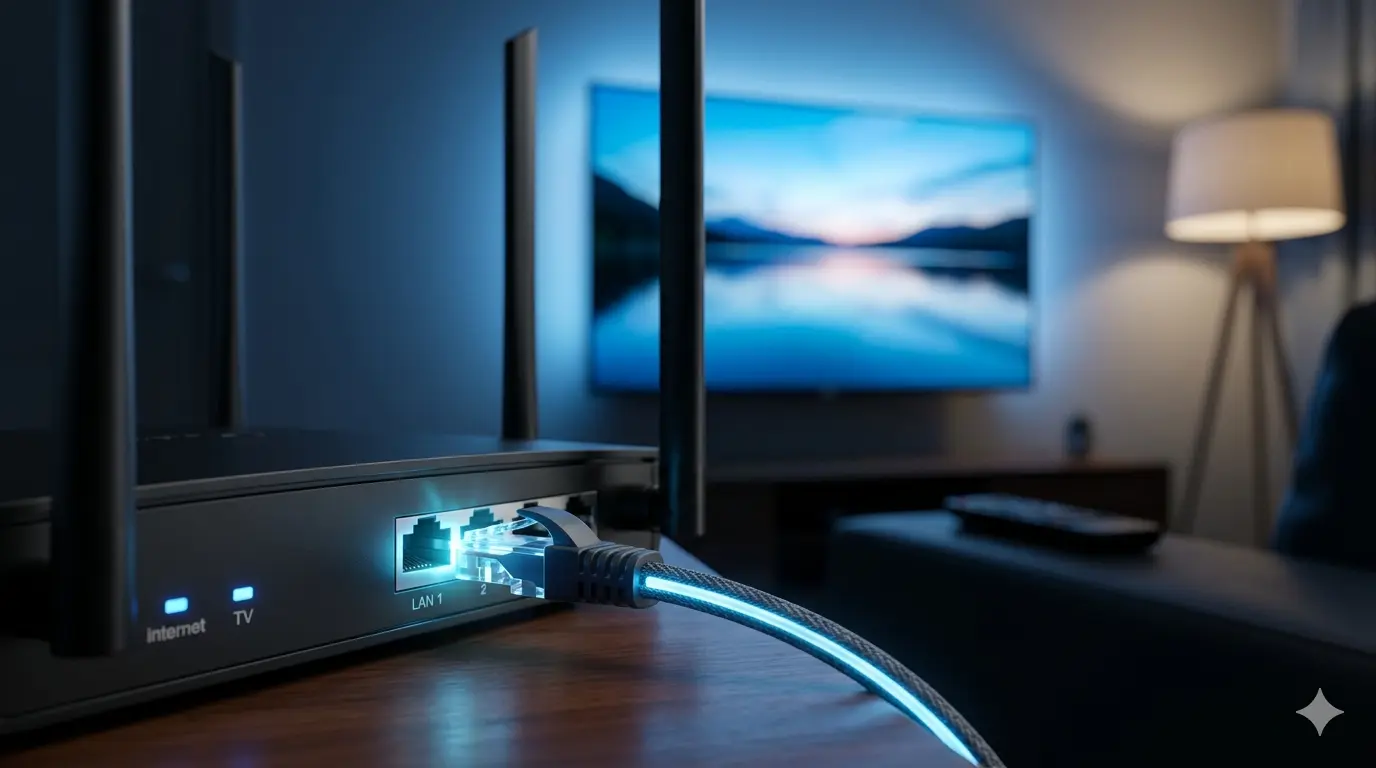
The most effective step to reduce buffering is using an ethernet cable instead of Wi-Fi. A wired connection is more stable, faster and immune to interference from neighbouring Wi-Fi networks, microwaves or thick walls that weaken the signal.
If your Smart TV or Android box has an ethernet port, it is worth running a cable, even if Wi-Fi seems to be working fine. Especially for 4K streams or live sport, where a short interruption is particularly noticeable, a wired connection makes a clear difference.
Optimising your router and home network
If a cable is not practical, you can improve Wi-Fi performance by moving your router closer to your television or upgrading to a model that handles the 5 GHz band well. The 5 GHz band is faster than 2.4 GHz and less congested, making it ideal for streaming.
A mesh Wi-Fi system is a good solution if your TV is in a different room from the router. Mesh systems distribute the Wi-Fi signal evenly throughout your home, giving you a stable connection in every room. Also restart your modem and router regularly, as long-running sessions can strain their memory and reduce performance.
- Use the 5 GHz band instead of 2.4 GHz for streaming
- Place the router as close to your TV as possible
- Choose a mesh Wi-Fi system for large homes or multiple floors
- Restart modem and router weekly for best performance
- Limit the number of devices using heavy bandwidth at the same time
Adjusting device and app settings
Smart TVs and Android boxes can slow down as more apps run in the background. Close apps you are not using through your device's task overview and restart the device fully from time to time. This frees up memory and lets the IPTV app use all available resources.
Also clear the cache of your IPTV app regularly. Cached data can become outdated and slow the app when loading channels or VOD content. In your device settings, under "Apps" or "Storage", you will find the option to clear the cache.
Matching stream quality to your connection
Not every internet connection handles every stream quality equally. If you notice that 4K streams regularly stutter, try switching to FHD or HD. A stable FHD stream gives a far more enjoyable viewing experience than a 4K stream that interrupts every few minutes.
Many IPTV apps let you set a default stream quality. Lowering the quality by one step significantly reduces the data demand per second. On a typical TV screen the difference between FHD and 4K is barely noticeable, while stability improves considerably.
When the problem is on the IPTV server side
If your home network is in order, other streaming services work without issues and your internet speed is well above requirements, but your IPTV keeps stuttering, the problem may lie with your provider's server. This sometimes happens during major live events when many subscribers are watching the same server simultaneously.
A VIP subscription offers higher server priority in these situations, which can make a noticeable difference during peak load. Also contact support if you notice that specific channels or regions are consistently problematic, as this can point to a server configuration issue that can be resolved quickly.
Step by step: what to do when buffering keeps returning
When buffering is a recurring problem, work through the possible causes step by step rather than adjusting settings at random. Start with the most likely causes and work your way towards the less obvious ones.
Document what you tried and what effect it had. A clear overview of your tests helps support understand where the problem lies straight away, which means you get a solution faster.
- Step 1: Test your internet speed on the device
- Step 2: Replace Wi-Fi with an ethernet cable
- Step 3: Restart your modem, router and IPTV device
- Step 4: Close all background apps and clear the app cache
- Step 5: Lower the stream quality in the app settings
- Step 6: Test on a different device or network
- Step 7: Contact support with a description of what you have tried